
March 2026
How I Use Lectr
I built Lectr to be a reading notebook, and what I actually do with the app every day has drifted from what I imagined when I was working on it.
What follows is a tour of my habits.
Thematic Search
The feature I use most is thematic search. I use it to explore. I’ll type a theme like “uncertainty” or “obligation” or “craft” and see what comes back across my whole library.
The results are often surprising. A passage from a novel sitting next to something from a business book, connected by an idea I hadn’t linked. That kind of cross-pollination is hard to get any other way.
Once I’ve found something interesting through thematic search, I drill down with keyword search within the content itself. Together they let me move from “I’m curious about X” to “here’s the exact passage that says it best” in a couple of minutes.
The Random Quote Button
Sometimes discovery isn’t deliberate at all. Lectr has a random quote feature, and I use it more than I expected to. It surfaces passages from across my library at random.
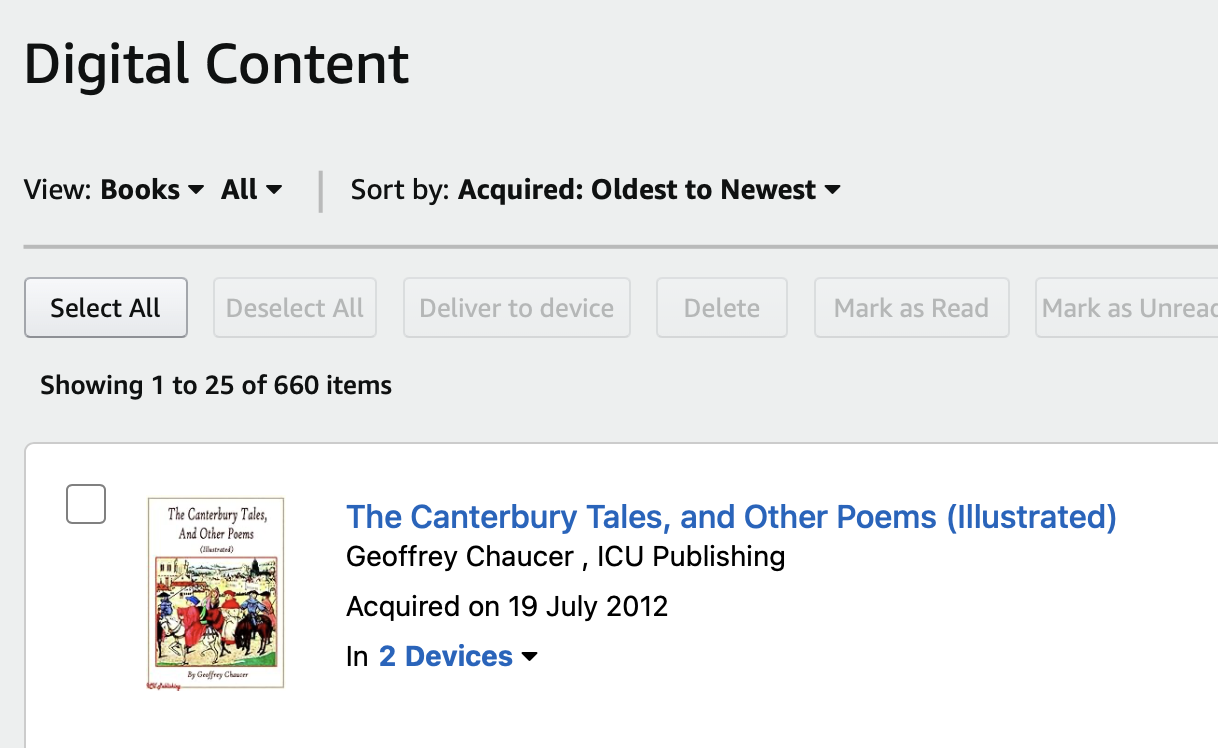
I have over 3,000 citations in my library now, going back more than ten years. Most of them came in through the Kindle import. When I imported my clippings file, years of highlights from a Kindle I’ve had since the early 2010s flooded in. Books I’d forgotten. My oldest ebook is Chaucer’s Canterbury Tales, acquired in July 2012.
The random quote button reaches into all of that.
I’ll be having my morning coffee, tap the button, and get a passage from a book I read seven years ago that happens to connect to a problem I’m working on this week.
Colour Coding: My Filing System
I colour-code everything. It started as a vague organisational instinct and has settled into a system I actually rely on.
Red is for critical notes. Things I disagree with, or things that feel important enough to flag.
Green is positive. Passages I admire, ideas I want to absorb.
I apply the same colour logic to quotes as to my own notes, so my library has a kind of colour-coded layer running through it. I can filter by colour across my whole collection and see, at a glance, the things that excited me versus the things that provoked me.
Blue Means Get Back Here
Blue is different. Blue is what I call my “PWD” mechanism. The analogy is to the terminal command that tells you where you are right now. Blue quotes and notes are markers for things I actually need to return to, usually because they connect to something I’m working on.
If I’m reading a book about organisational design and I hit a passage that’s relevant to a project at work, that gets a blue tag. Because I need to act on it.
I can filter to blue and immediately see every quote and note that has a practical claim on my time right now.
Working at the Book Level
Some things in Lectr happen in the background automatically. Theme extraction, for instance, runs across your whole library so you can search by theme without thinking about it. But other things I need to do in bulk, like tagging and colour coding, and for me that only works at the book level. Lectr lets you colour-code notes and quotes across an entire book at once. I wouldn’t want to do this at the “all notes and quotes” level — it’s too much to hold in your head. But within a single book, where you remember the context, bulk tagging makes sense.
Reading Portrait and Recommendations
Lectr builds what it calls a Reading Portrait from your library. Recommendations improve as you add to it.
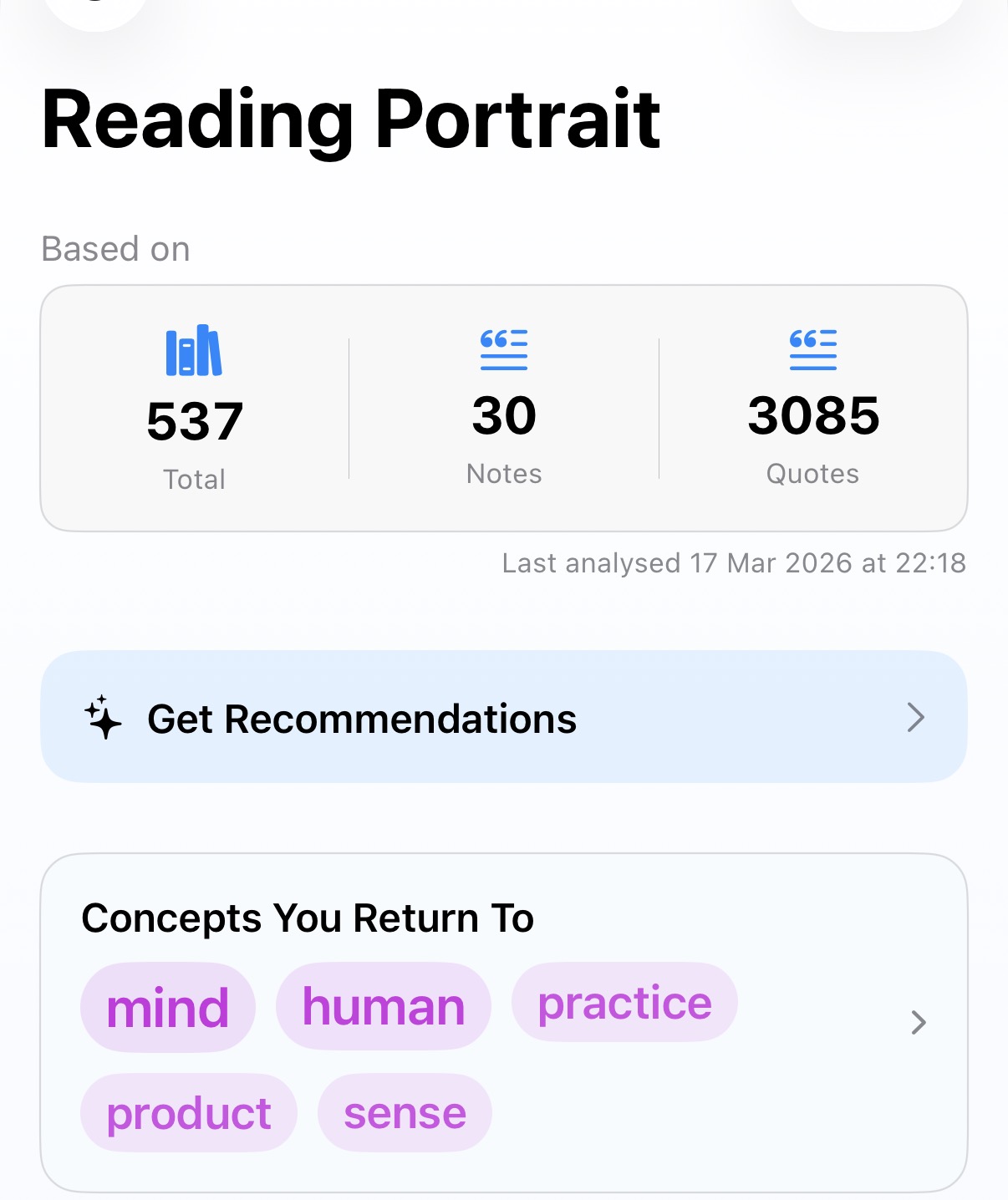
I use the recommendations as a starting point. When Lectr suggests a book, I don’t just add it to my list. I do some homework first.
I have a research habit that goes like this. I take the title and author from a recommendation and run two separate searches. The first: “show me criticism of [title] by [author]” in Perplexity. The second: “show me praise of [title] by [author].”
It’s a quick way to assemble opposing views on a book before committing to it. Lectr lets you configure which research tools to use for this.
The whole loop takes maybe five minutes. It means the books I actually commit to reading have been vetted.
Lectr is available on the App Store for iOS. One-time purchase, no subscription. Android - coming April 2026.